Core concepts
The handful of ideas the rest of the docs assume. Read this once and the guides will make sense. This page is the home for Kard’s vocabulary — other pages link here instead of redefining these terms.
A Kard is the basic unit of work in Kard — one thing you want to track, write down, or pin in your level. Every card has a title, a description (written in markdown), and a type. There are three types:
- Task — a piece of work with a status that moves through a workflow (for example, Open → Done). Use tasks for bugs, features, and to-dos.
- Note — a quick, transient capture: a thought, a reminder, a message to a teammate. Notes don’t carry a workflow status.
- Page — a longer document, like a design doc, a spec, or meeting notes. Pages are artifacts you curate over time.
You choose the type when you create a card, and each type lives in its own area of the workspace.
To create and edit Kards, see Create & edit Kards.
Folders
Section titled “Folders”A folder is a container that groups your Kards — Kard’s version of a board. Folders are hierarchical: a folder can contain sub-folders, so you can organize work however your project is structured (for example, a Programming folder with Gameplay and UI sub-folders).
Tasks, Notes, and Pages each have their own folder tree. A task folder is what most tools would call a board; the tasks inside it are the board’s Kards.
To build and organize folders, see Folders, boards & columns.
Workflow statuses
Section titled “Workflow statuses”A status is the stage a task is in, and a workflow is the ordered list of statuses a task can move through. Out of the box, every task folder uses the default workflow:
Open → In Progress → In Review → Done
Workflows are customizable per folder. A QA folder can use Untested → Testing → Failed → Passed; a programming folder can keep the default and add a Code Review step. You set any names, any colors, and any order you like, and sub-folders inherit their parent’s workflow unless you give them their own.
In a Board view (see below), each status is a column, and you move a task forward by dragging its card from one column to the next.
To define statuses, see Folders, boards & columns.
Views & layouts
Section titled “Views & layouts”A view is a way of looking at the same Kards. Switching the view never changes your data — it only changes how the Kards are displayed. The Tasks area offers three layouts:
- List — a compact, scannable list of rows. Best for triaging or scanning many tasks.
- Kards — a grid of larger tiles. Best for a visual overview.
- Board — a kanban-style board with one column per workflow status. Best for tracking work as it moves stage to stage; drag a card between columns to change its status.
All three show the same tasks from the same folder — they’re just different shapes for the same data.
A vocabulary map
Section titled “A vocabulary map”If you’re coming from another project-management tool, these are the rough equivalents:
| Kard term | What it is | Familiar equivalent |
|---|---|---|
| Kard | One item: a task, note, or page | Task / ticket / issue |
| Folder | A container that groups Kards | Board / project / list |
| Status | The stage a task is in | Column / state |
| Workflow | The ordered list of statuses | Board columns, as a set |
| View (layout) | A way to display the same Kards | Board / list / grid display |
The analogues are approximate — they’re there to orient you, not to map one-to-one.
The workspace
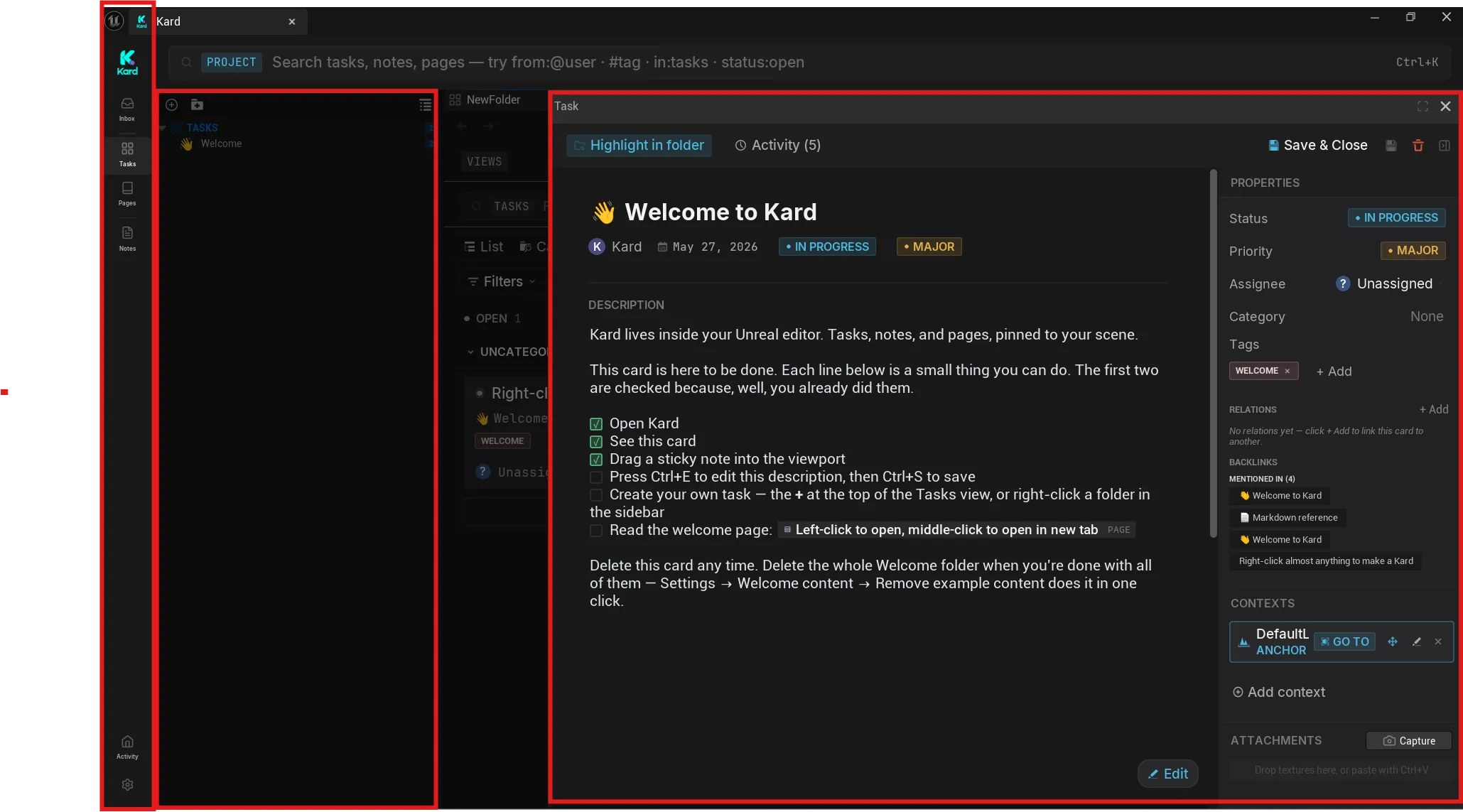
Section titled “The workspace”Kard opens as a single dockable panel in the editor. Everything happens inside that one panel, which has four main parts:
- The icon rail — the column of icons down the left edge. It switches between the main sections: Inbox, Tasks, Pages, Notes, Activity, and Settings.
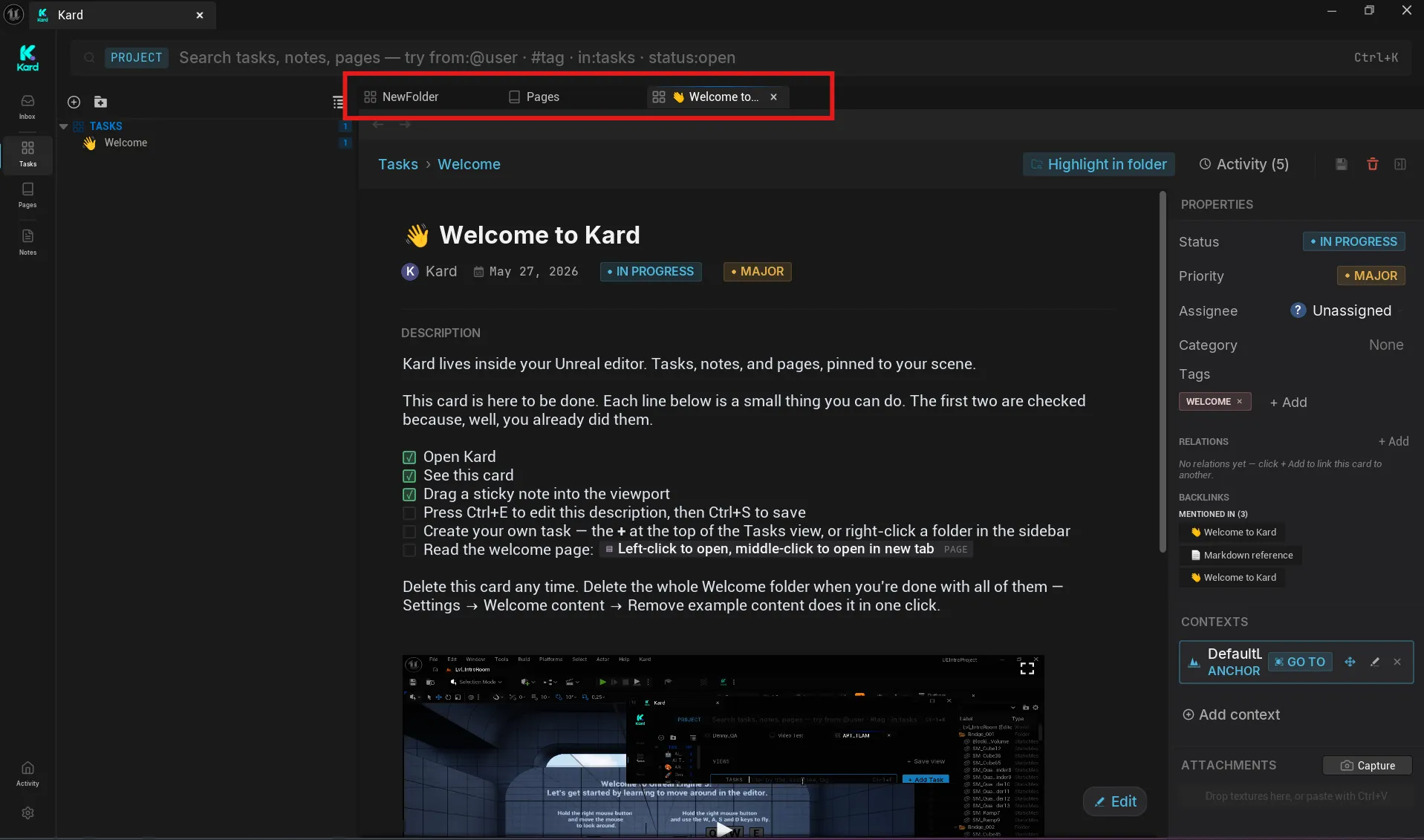
- Workspace tabs — the strip of tabs across the top of the Tasks and Pages areas. Each tab is its own view of a folder or card, with its own back/forward history, like browser tabs.
- The sidebar folder tree — the collapsible tree next to the tabs. It shows the folders for whichever section you’re in and lets you navigate between them.
- The kard drawer — a panel that slides in from the right to show a card’s details for a quick edit, without opening a full tab. Notes always open in the drawer; a task opens in the drawer on a single click.
Where your data lives
Section titled “Where your data lives”Your Kards are stored as standard Unreal assets (.uasset files) inside your project’s Content folder, under /Game/Kard/ — tasks under /Game/Kard/Tasks, notes under /Game/Kard/Notes, and pages under /Game/Kard/Pages. That has three consequences worth knowing up front:
- You own your data. It lives in your project, not on someone else’s server.
- It version-controls with your repo. Kards are assets like any other — commit them alongside your project in Git or Perforce.
- It’s local-only in v1.0.0. Nothing leaves your machine, and there is no server to set up.
Related Reads
Section titled “Related Reads”- Quick start — put a first task on a card in a couple of minutes.
- Create & edit Kards — work with card fields, descriptions, and details.
- Folders, boards & columns — organize folders and set up per-folder workflows.