Create & edit Kards
A Kard is the basic unit of work in Kard. This page covers the day-to-day of a single Kard: creating one, filling in its fields, writing its description, attaching images, commenting, and saving. New to the vocabulary? Start with Concepts.
Linking Kards together, pinning them in your level, and finding them live on their own pages — see Next steps.
Create a Kard
Section titled “Create a Kard”Kard has three Kard types:
- Task — trackable work with a status and a priority. The default type.
- Note — a sticky note. Has a color and an optional audience.
- Page — a long-form document. Body text, no task fields.
A Kard’s type is set when you create it and doesn’t change afterward — make a new Kard of the right type instead.
You can create a Kard many ways:
- From a list — open Tasks (or Notes / Pages) and click the + Add Task pill at the top of the list. The new Kard lands in the active folder and opens.
- With the keyboard — press Ctrl+N while a Tasks list has focus to create a task in the active folder.
- From the viewport (right-click) — right-click in the level, an actor, or a Content Browser asset and choose a Create Task / Create Note / Create Page entry. This also pins the Kard to what you clicked — see Pin Kards in your level.
A new Kard opens with an empty title (shown as Untitled until you name it) and, for tasks you create, is assigned to you automatically.
Tour the detail view
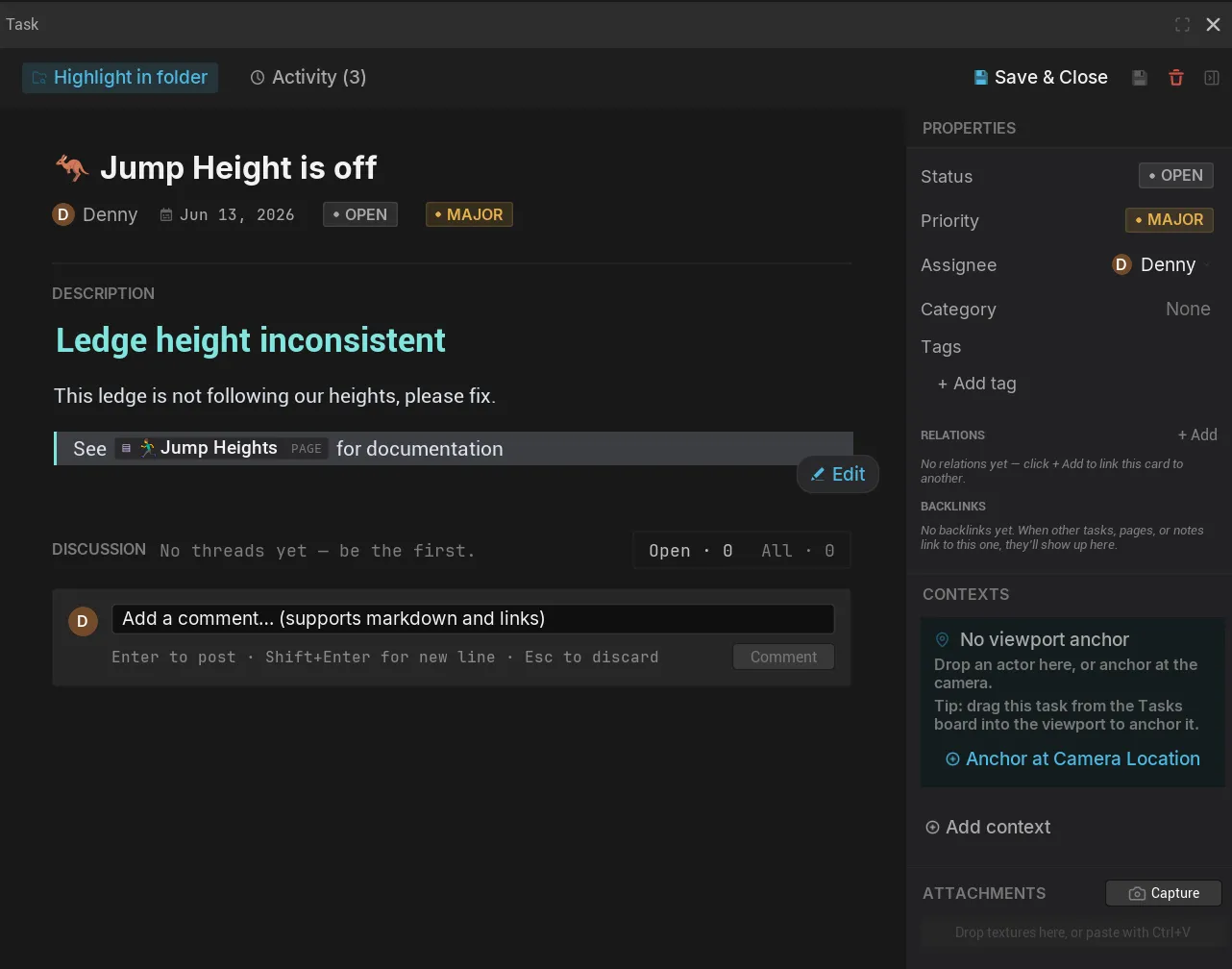
Section titled “Tour the detail view”Opening a Kard shows the detail view — the single editor for every Kard type. Its main regions:
- Toolbar (top) — breadcrumbs, a History button, the Save button, Delete, and the properties toggle.
- Title — an inline editable field with a dirty-state dot to its left.
- Meta strip — author, date, and the status / priority pickers.
- Description — the markdown body, shown rendered until you enter edit mode.
- Comments — the discussion thread, below the description.
- Properties panel (right) — the Kard’s fields: tags, category, assignee, and contexts.
Edit the title and description
Section titled “Edit the title and description”- Click the title and type. It commits when you press Enter or click away.
- To edit the body, click the floating Edit pill at the bottom-right of the description, double-click the body, or press Ctrl+E.
- Type your content, then Save (see below).
The description is markdown — bold, italics, code, headings, lists, links, and embeds. For the full syntax, see the Markdown reference.
Set tasks fields: status, priority, assignee, tags
Section titled “Set tasks fields: status, priority, assignee, tags”These fields live in the meta strip and the properties panel of tasks.
| Field | What it does |
|---|---|
| Status | Where the Kard sits in its folder’s workflow. The default flow is Open → In Progress → In Review → Done. Tasks only. |
| Priority | How urgent — Blocker, Critical, Major, Minor, Trivial (default Major). |
| Assignee | Who owns the Kard. New tasks you create are assigned to you. |
| Tags | Free-form labels for grouping and filtering. A Kard can carry many. |
| Category | A single category label, chosen from your configured list. |
Add an attachment
Section titled “Add an attachment”Attach an image to a Kard from the description editor:
- Paste an image — copy an image to your clipboard, then press Ctrl+V in the description. If the clipboard holds an image it becomes an attachment; otherwise Ctrl+V pastes text as usual.
- Capture the viewport — press Ctrl+Shift+V to capture the active level-editor viewport as an attachment.
- Drag a texture — drag a texture asset from the Content Browser onto the description.
Each attachment embeds in the body as ![id], and the Kard’s Attachments panel lists its images.
Comment on a Kard
Section titled “Comment on a Kard”Every Kard carries a comment thread below the description:
- Type in the Add a comment composer.
- Click comment (or press Ctrl+Enter in the composer).
- Reply under a comment, or Resolve a thread from its root.
Comments are part of the team flow — @-mentions, your Inbox, and how a locked Kard queues a comment are covered in Collaborate with your team.
Save & drafts
Section titled “Save & drafts”Kard uses an explicit edit-then-save model. Your edits live in a working buffer until you commit them — the Kard always displays its last saved state.
- Edit the title, description, or fields.
- Press Ctrl+S or click the toolbar Save button to write the Kard to disk.
- Press Esc to cancel an in-progress description edit and revert to the saved text.
Clicking away from a description edit does not save it — only Ctrl+S or the Save button commits it. This is deliberate, so a stray click never writes a half-finished edit. (Field pickers like status and priority do commit as soon as you pick them.)
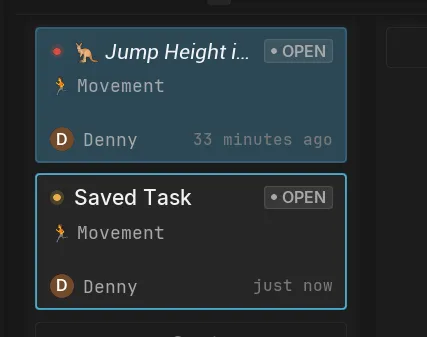
Two signals tell you a Kard has unsaved changes:
- An accent dot appears to the left of the title.
- The toolbar Save button tints to the accent color (and is disabled when there’s nothing to save).
- The title will show in italics on all Tasks views
New Kards start as drafts in memory; saving writes them as standard assets in your project’s Content folder, version-controlled alongside the rest of your project. If you close the Kard drawer with unsaved changes, Kard prompts you to Save, Discard, or Cancel.
Each Kard also keeps a short, read-only History (the toolbar History button) recording recent field changes. History is an audit trail, not a redo stack — to roll back an edit, use undo.
Undo an edit
Section titled “Undo an edit”Kard participates in Unreal’s native undo. Press Ctrl+Z to undo and Ctrl+Y to redo. One undo step reverts a whole gesture — a rename, a status change, or a Kard move — not one keystroke at a time. The viewport badge and lists re-sync automatically.
Duplicate and delete
Section titled “Duplicate and delete”- Duplicate — press Ctrl+D (or right-click → Duplicate). The copy lands in the same folder with a fresh author (You) and timestamp.
- Delete — use the toolbar Delete button, or focus a Kard row and press Delete. If your project has the deletion audit turned on (it’s off by default), each deletion is recorded so you can see what was removed and when in the Activity feed.
Related Reads
Section titled “Related Reads”- Folders, boards & columns — organize cards into folders, define workflow statuses, and use the Board layout.
- Relate & link cards — typed relations and
[[wikilinks]]between cards. - Pin cards in your level — anchor a card to a spot, actor, or asset in your project.
- Markdown reference — the full description syntax.