
Collaborate with your team
Work with teammates in a project you share over version control (Perforce or Git). Kard stamps who did what, routes mentions and assignments to a personal Inbox, and gives you a project-wide Activity feed — all from the Kards already committed alongside your project.
See Concepts for the Kard, folder, and status vocabulary this page assumes.
Sign in to your account
Section titled “Sign in to your account”Kard requires a local account — when you open Kard, the account page is the first thing you see, and the workspace stays locked until you sign in. Accounts are local to your project; there’s no external sign-up.
- First run (no accounts yet) — create the first account. It becomes the admin and signs you in right away.
- Admins — create an account for each teammate. Only admins can add accounts.
- Everyone else — sign in with the username (or email) and password your admin gave you. Sign in once and you stay signed in on that machine.
Kard stamps your account on everything you author — Kards, comments, assignments — so the Activity feed and the Mine filter always know who did what.
Where accounts are stored
Section titled “Where accounts are stored”Your team’s accounts live in one Unreal asset — the user directory — saved in your project (default /Game/Kard/KardUsers) and committed with your version control. Because it’s a single file, source control can exclusively lock it: in practice only an admin who can check it out can change who’s on the team. That lock — not an account’s admin flag — is what actually protects the roster.
Identity settings (the user-directory path, the team roster) live in the Settings reference.
Assign a Kard to a teammate
Section titled “Assign a Kard to a teammate”- Open the Kard.
- In the detail view, open the Assignee dropdown.
- Pick a teammate.
The picker lists everyone Kard already knows: the unassigned option first, then you, then every teammate who has authored or been assigned a Kard in the synced project. On a shared project, once two teammates have each committed a Kard, both names appear in everyone’s picker — no server required.
When you assign a Kard to someone else, it shows up in their Inbox under Assigned. Assigning a Kard to yourself never notifies you.
Mention someone
Section titled “Mention someone”Type @ in a description or comment to mention a teammate. Pick them from the popup; Kard inserts a mention token.
The Kard lands in the mentioned person’s Inbox under Mentions. Mentions inside a comment scroll straight to that comment when they open the Kard.
Comment and reply
Section titled “Comment and reply”Comments live on the Kard itself. Each Kard keeps a threaded discussion:
- Comment — write in the composer at the bottom of the Kard’s comments section and post.
- Reply — reply to any comment to start a thread under it. Threads can nest to any depth; replies indent under their parent, and the visual indent stops deepening after a few levels so deep threads stay readable.
- Resolve — mark a thread root resolved when the discussion is settled.
Comments queue when a Kard is locked
Section titled “Comments queue when a Kard is locked”On a Perforce project, a teammate can have a Kard’s file checked out (locked) while they edit it. If you comment on a Kard that’s locked by someone else, Kard queues your comment instead of failing — the queued comment shows a “queued · waiting for lock” hint.
The queue posts your comment automatically once the lock clears (the holder submits, reverts, or you sync). The queue is saved per-machine, so it survives an editor restart — useful when a teammate holds a lock overnight.
Check your Inbox
Section titled “Check your Inbox”The Inbox is “what needs my attention right now” — only things addressed to you. Open it from the top button on the icon rail.
It collects three kinds of items, each on its own filter tab:
| Tab | Shows |
|---|---|
| Mentions | Kards where someone @-mentioned you (in a description or a comment). |
| Assigned | Kards a teammate assigned to you (self-assignment doesn’t appear). |
| Comments | New comments on Kards you created or are assigned to. |
The All tab shows everything; each tab carries a count.
- Unread items are bold and bright. Opening a Kard marks it read (italic, dimmed) but keeps it listed so you can come back.
- Dismiss an item to remove it from the list (the row X, the Delete key, or right-click Dismiss). Clear all dismisses everything; Mark all as read dims everything without removing it.
- The rail’s Inbox icon shows a badge with your unread count (
99+).
Follow the Activity feed
Section titled “Follow the Activity feed”The Activity feed is the project-wide firehose — “what changed in this project, by whom, when, and where to find it.” It’s the counterpart to the Inbox: Inbox is addressed to you, Activity is everything. Open it from the bottom of the icon rail (above Settings).
It merges every project change into one chronological timeline, grouped by day (Today / Yesterday / Earlier this week / Earlier):
- Field edits — title, status, priority, assignee, tags, and description changes.
- Comments — posted, edited, deleted, and resolved.
- Lifecycle — Kards created, moved, and deleted (if enabled in settings).
Each row names the author, the verb (commented on, changed the status of, created task…), and the target Kard. Click a row to open the Kard. Filter the feed by author, time range, folder, or change type.
See source-control state on Kards
Section titled “See source-control state on Kards”When source control is connected, Kard surfaces each Kard’s status so you don’t overwrite a teammate’s in-progress work.
- Checked out by another user — a Kard whose file a teammate has locked shows a marker and a “Checked out by
” tooltip in the detail view. Kard guards writes to a Kard someone else holds. - Out of date — a Kard that is out of date in perforce.
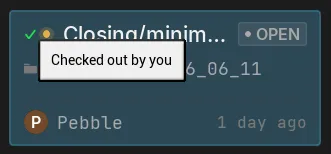
- Checked out by you — a Kard you have checked out.
- Changelist / commit links — Activity rows that landed in a committed revision show a link to that revision. On Perforce it opens the changelist (in P4V); on Git it opens the commit in your repository’s web host, if you’ve set that up.
The dedicated Kard changelist (Perforce)
Section titled “The dedicated Kard changelist (Perforce)”On Perforce, Kard keeps its own changes in a dedicated changelist — separate from your game-data edits — with an auto-written description listing the Kards and folders it contains. This keeps Kard’s .uasset changes from cluttering your main changelist.
This is on by default and can be turned off in Settings → Source Control (“Use a dedicated Kard changelist”). It applies to Perforce only; on Git and other systems it does nothing.
For how Kard stores Kards and what’s safe to commit, see the FAQ.
Related Reads
Section titled “Related Reads”- Create & edit Kards — the day-to-day Kard workflow.
- Settings reference — identity, accounts, and source-control options in full.
- FAQ & troubleshooting — storage, source control, and data safety.
- Project management in your version control — a higher-level overview of local-first, version-controlled planning.