KardAI assistant
KardAI is an in-editor chat that can read your Kards and help you edit them. It’s an optional feature that’s off by default — nothing about it runs until you turn it on and add your own API key.
What KardAI is
Section titled “What KardAI is”KardAI is a chat panel built into Kard. With it you can:
- Ask questions about your project’s Kards (tasks, notes, and pages — see concepts).
- Have it draft or rewrite a Kard’s description, suggest edits, and apply changes scoped to a Kard.
- Scaffold folders and seed Kards from a plain-language request.
It is one chat per editor session — every place you reach KardAI shares the same conversation and memory.
KardAI talks to a hosted large-language-model (LLM) provider over the internet. Kard does not ship a key or a model — you supply both. With no key configured, KardAI does nothing.
Turn it on
Section titled “Turn it on”KardAI lives behind a master switch in Kard’s settings.
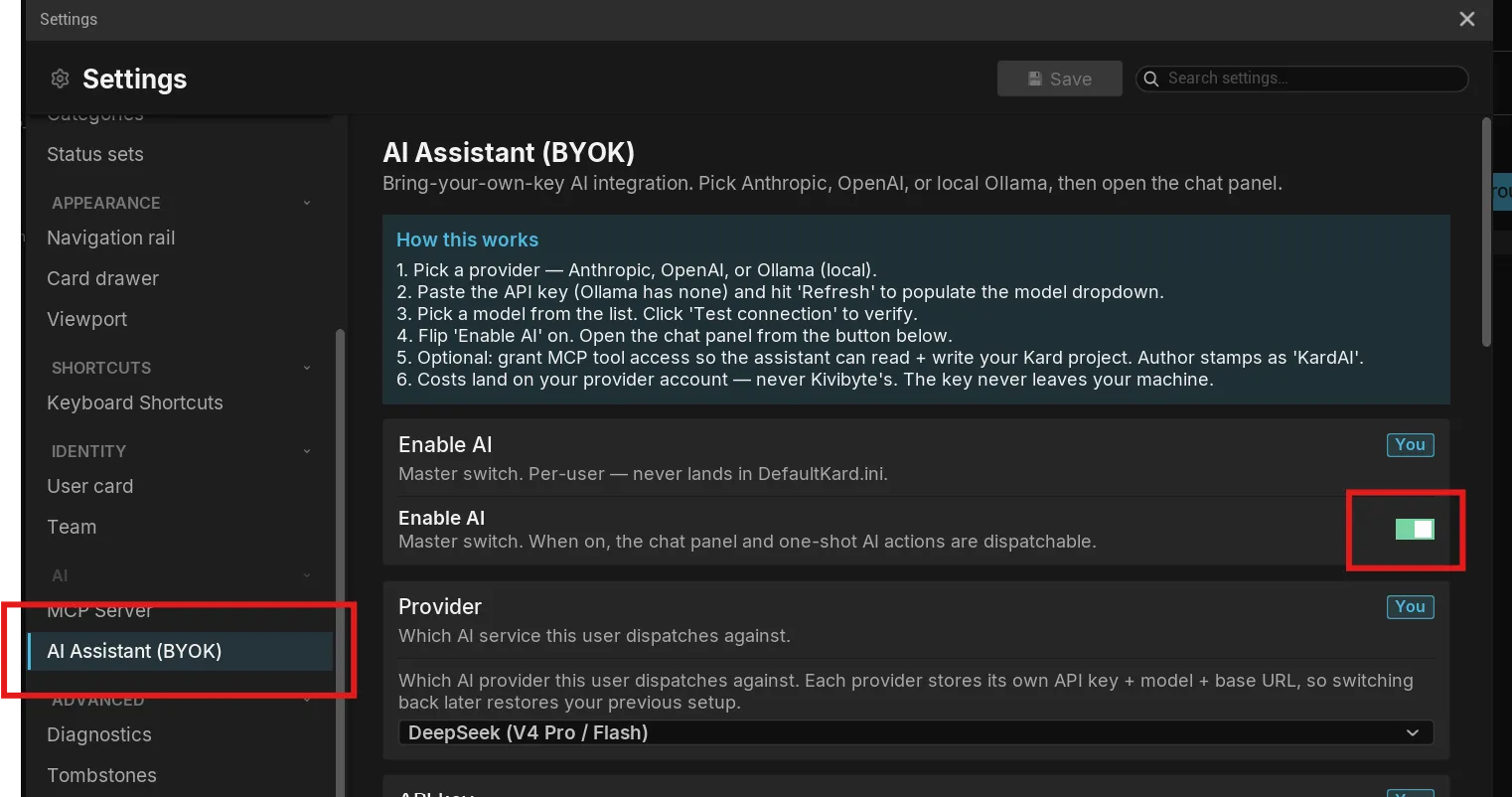
- Open Edit → Project Settings → Plugins → Kard AI (or open Kard’s in-plugin Settings and find the AI page).
- Turn on Enable AI.
- KardAI’s controls now appear in Kard’s chrome — but you still need a key before it can answer.
The switch is off out of the box, and the AI controls stay hidden in the editor until you flip it on.
Choose a provider and add your key
Section titled “Choose a provider and add your key”KardAI is bring-your-own-key. On the AI settings page, pick a Provider, paste that provider’s API key, and choose a Model.
Kard ships with these providers built in:
| Provider | Notes |
|---|---|
| Anthropic (Claude) | Default on first run. |
| OpenAI (ChatGPT / GPT) | Works with Azure OpenAI via a base-URL override. |
| DeepSeek | OpenAI-compatible. |
| Google Gemini | |
| Ollama (Local) | Runs a model on your own machine — no API key required. |
Each provider keeps its own key, model, and optional endpoint, so switching providers doesn’t wipe the setup for the others.
- For a hosted provider (Anthropic, OpenAI, DeepSeek, Gemini): paste the API key you got from that provider, then pick a model. Use Refresh to pull the provider’s live model list, then choose one.
- For Ollama: no key is needed — Ollama runs locally. Make sure your local Ollama server is running and point Kard at it if it isn’t on the default host.
Use KardAI
Section titled “Use KardAI”Once it’s enabled and keyed, you can reach the same conversation from three places.
The header dropdown
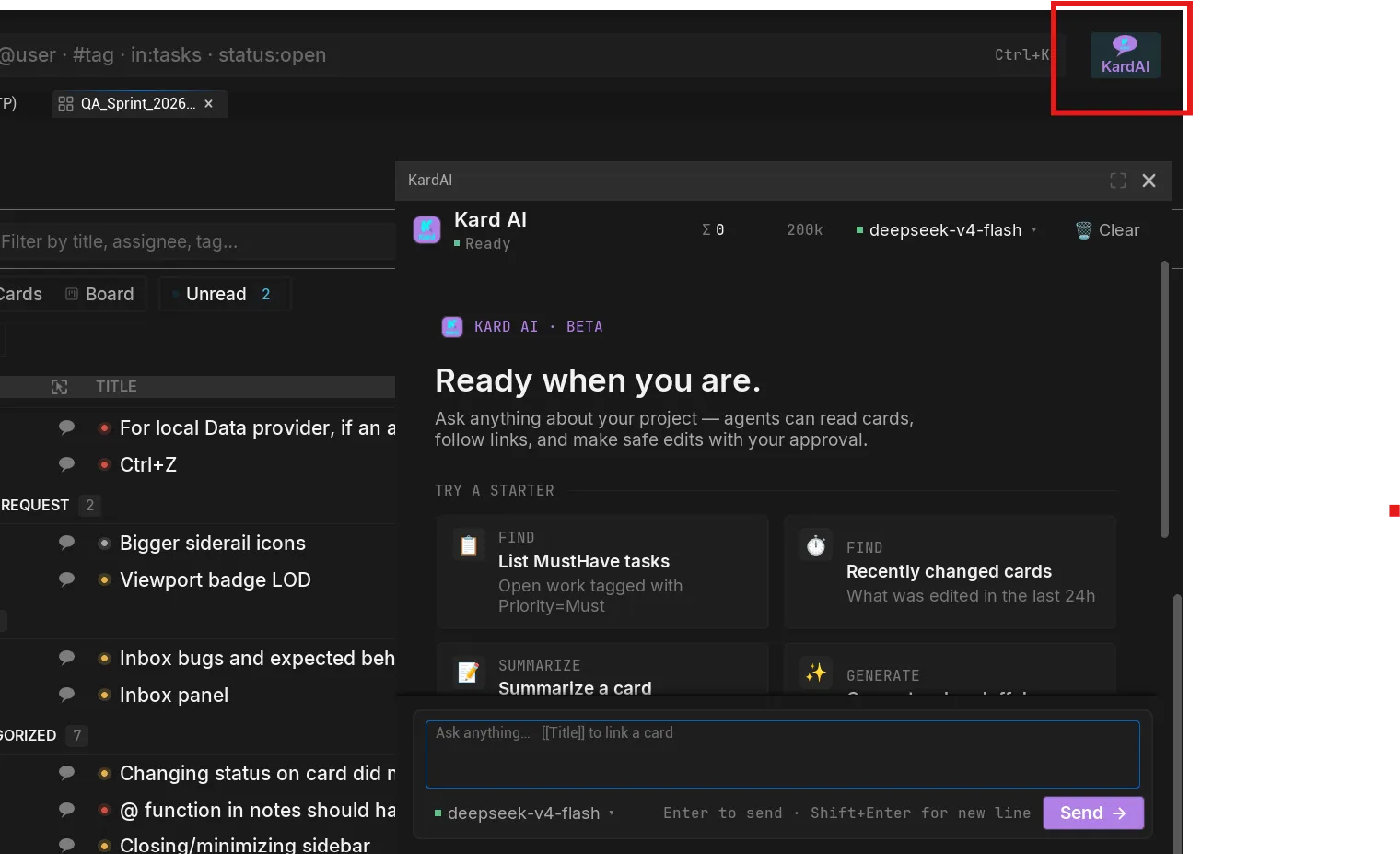
Section titled “The header dropdown”Click the KardAI button next to the project search bar to open the chat dropdown. This is the quickest way to start typing — the input is focused for you. The keyboard shortcut Ctrl+Shift+K toggles it too.
The KardAI tab
Section titled “The KardAI tab”Open the chat as a dockable tab from Window → Tools → KardAI, or use the dropdown’s maximize button. Dock it wherever you like — beside the viewport, next to your Kard tab, or floating in its own window. The editor stays fully interactive while it’s open.
Ask about a specific Kard
Section titled “Ask about a specific Kard”From a Kard’s detail view, use the Ask AI about this card action to start the chat already focused on that Kard. KardAI then defaults to suggesting edits you can review and accept, rather than overwriting your Kard silently.
Inline mentions that auto-run
Section titled “Inline mentions that auto-run”Type @[agent:KardAI] inside a Kard’s description or a comment to ask KardAI a question right where you’re writing. The mention auto-runs on the shared conversation, scoped to that Kard, and KardAI posts its answer back.
One shared conversation
Section titled “One shared conversation”All four surfaces — the dropdown, the tab, the per-Kard button, and inline mentions — are views of a single conversation per editor session. They share the same history and memory, so you can start a question in the dropdown and continue it in the docked tab.
It can suggest and apply edits
Section titled “It can suggest and apply edits”When KardAI changes a Kard’s wording, it prefers to suggest the change so you can Accept or Dismiss it. It applies edits directly only when you ask it to, or for mechanical field changes like status, priority, assignee, or tags. Any edit KardAI makes is attributed to it in the Kard’s history, and a robot glyph marks AI-assisted authorship.
Privacy and trust
Section titled “Privacy and trust”KardAI is the one Kard feature that sends your data off your machine — only when you turn it on, and only to the provider you pick.
- It’s off until you enable it. With Enable AI off, no Kard content is sent anywhere and the chat surfaces don’t appear.
- Your key, your provider. KardAI uses the API key you supply and sends to the provider you selected. Kard adds no provider of its own and routes nothing through Kivibyte.
- What gets sent. Your prompts, plus the Kard content KardAI reads to answer (titles, descriptions, comments, and related fields), go to your chosen provider, under that provider’s terms and privacy policy.
- Local option. Choose Ollama to run a model on your own machine if you don’t want Kard content leaving it at all.
- Your data still lives in your project. KardAI doesn’t change where Kard stores Kards — they remain local
.uassetfiles under your version control. This is separate from Kard’s hosted cloud sync backend, which is in development for a future release.
Next steps
Section titled “Next steps”- Settings reference — every AI setting, its default, and scope.
- Connect external tools via MCP — let external AI tools talk to Kard over the local MCP server.
- FAQ and troubleshooting — data ownership, limits, and fixes.