Contexts & references
Beyond its single spatial anchor, a Kard can carry any number of references — typed links to engine objects you can navigate back to. References live alongside the anchor in the Kard’s Contexts panel, but they’re a separate list and never draw a viewport badge — only the spatial anchor does.
This page covers linking a Kard to an Asset in the content browser, Blueprint node, level, asset, or optional plugin object from the right-click menu.
Link a Kard to an engine object
Section titled “Link a Kard to an engine object”Beyond a spatial spot, you can attach a Kard to a specific engine object so the Kard carries a typed reference you can navigate back to. Right-click the object and use the Kard section:
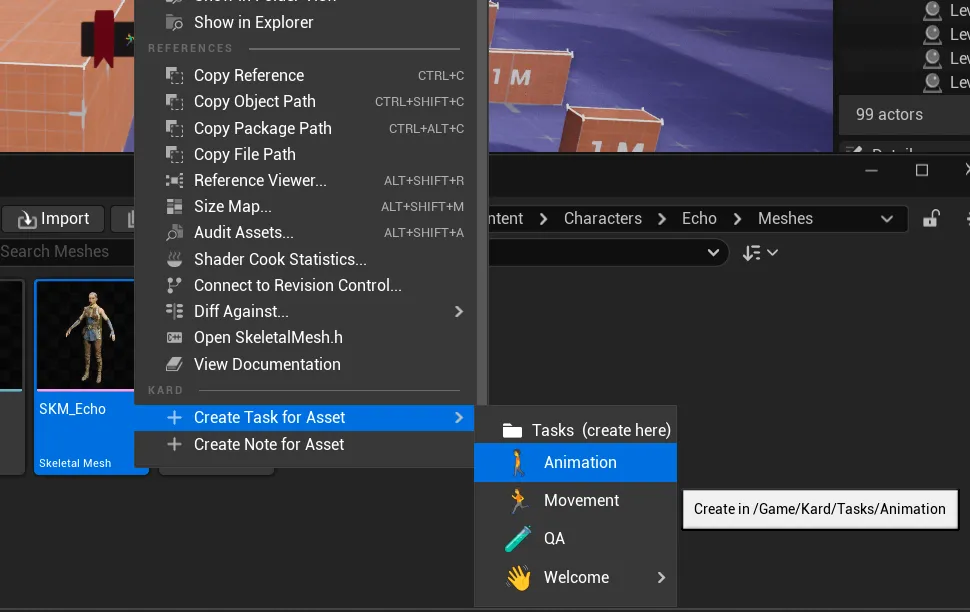
- Create Task — a new task linked to that object.
- Create Note — a new note linked to that object.
- Copy Markdown Link — copies a link you can paste into any Kard description to reference that object.
Supported objects:
| Object | How you reach it | Module |
|---|---|---|
| Actor | Right-click an actor in the viewport | Built in |
| Blueprint | Right-click a Blueprint asset or graph node | Built in |
| Level / world | Drag a level asset into a card description, or anchor in the level | Built in |
| Content Browser asset | Right-click an asset | Built in |
| PCG graph / node / volume | Right-click in a PCG graph or on a PCG actor | Optional — needs the PCG plugin |
| Niagara node | Right-click a Niagara graph node | Optional — needs the Niagara plugin |
| Sequencer frame | Right-click in a Level Sequence | Optional — needs the Level Sequence plugin |
Asset contexts
Section titled “Asset contexts”Right-Click any asset in the engine to create Task or Note for it.
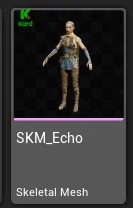
Any asset mentioned in a Kard will be marked in the content browser.
Blueprint contexts
Section titled “Blueprint contexts”Blueprints are everywhere in Unreal, that is why you can link to any Blueprint Graph Node in Unreal. Simply right-click any node and look for the Kard menu.
Copy Markdown Link
Section titled “Copy Markdown Link”One of the most powerful tools in Kard is the ability to copy a Markdown link and paste it into any description. See the following video in Sequencer. You can copy the Markdown link for a specifc frame. Paste it into the description. Then it becomes a clickable link that opens the sequence at the exact frame you copied.
Customizing Contexts
Section titled “Customizing Contexts”Kard ships with a lot of contexts but we can’t cover everything. Every game is different. You might have your own tools. That is why Kard ships with customizable contexts. You can simply create a new Blueprint and implement them yourself!
For what to do with a linked Kard — typed relations and [[wikilinks]] between Kards — see Relate & link Kards.
Related Reads
Section titled “Related Reads”- Anchor Kards in your level — pin a Kard to a 3D spot and see it as a badge.
- Relate & link Kards — typed relations and
[[wikilinks]]between Kards. - Create & edit Kards — fields, descriptions, attachments, and comments.
- Tasks that understand your assets — a higher-level overview of context-aware references and capture.