

Search, filter & saved views
Find any Kard fast, then reuse the filter setups you build. This page covers project search, the command palette, filtering the task list, saving a filter as a reusable view, and bulk-editing several Kards at once.
If a term here is new, see Concepts for the object model (Kard, folder, status, view).
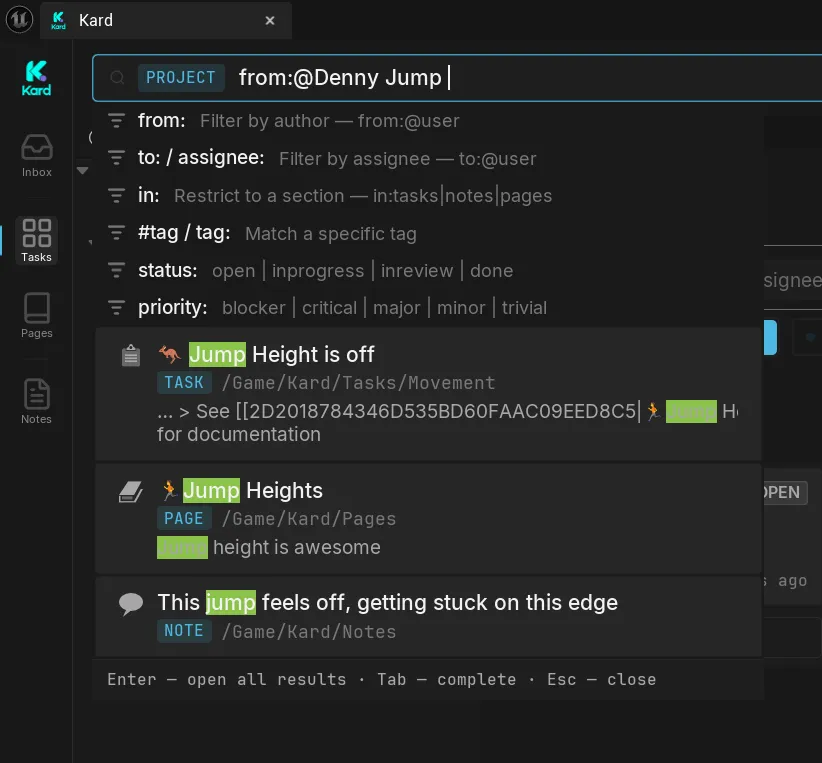
Search your project
Section titled “Search your project”Press Ctrl+K to jump to the project search bar at the top of the Kard window.
As you type, Kard shows live suggestions and the top matching results in a dropdown:
- Up / Down move the highlight.
- Tab completes the highlighted suggestion (for example, an operator, user, tag, or section).
- Enter on a highlighted result opens that Kard directly.
- Enter with nothing highlighted runs the full query and switches to a Search Results view.
- Esc closes the dropdown.
Search looks across your whole project, not just the folder you’re in.
Filter the task list
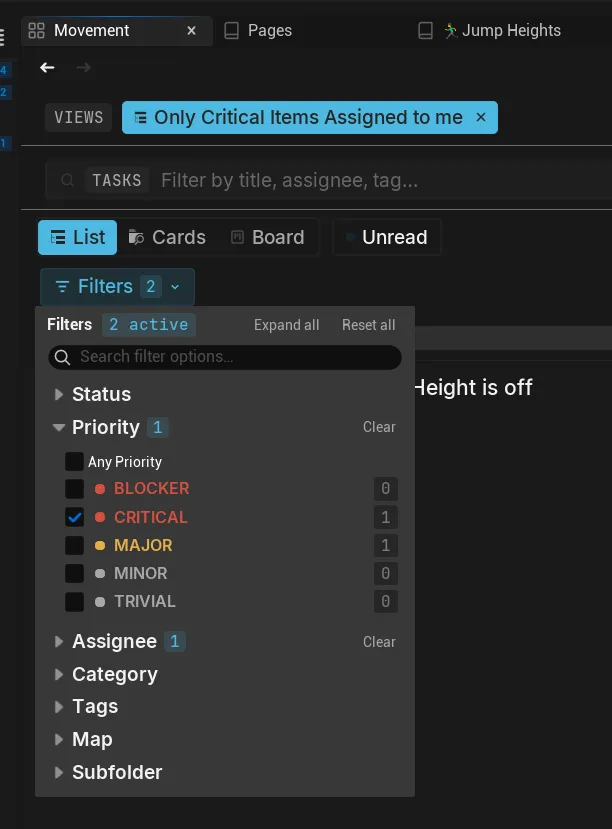
Section titled “Filter the task list”The task list has a filter bar above it. Open the filter dropdown to narrow the list by any combination of:
- Status — the folder’s workflow statuses.
- Priority
- Assignee
- Tags
- Category
- Map
- Subfolder — limit to a folder and its descendants.
Each filter you pick shows as a chip in the bar. The list updates immediately. Filters combine as “match all dimensions, any value within a dimension” — for example, status In Progress and assignee you shows only your in-progress Kards.
To clear filters, remove individual chips, or use Reset all in the filter dropdown.
The Unread button lets you see items that have updates on them like comments or state changes since you last looked at it.
Search inside the filter dropdown
Section titled “Search inside the filter dropdown”The filter dropdown has its own search box at the top. Type to narrow the long option lists (assignees, tags, categories) so you can find the value to filter on faster. This only hides options in the dropdown; it doesn’t change your active filters.
List view columns and ordering
Section titled “List view columns and ordering”The list view allows you to order in any way you like. You can also add/remove colums to customize your list view as you wish.
Narrow the visible list by text
Section titled “Narrow the visible list by text”To quickly find a Kard within the list you’re looking at, press Ctrl+F (or /) to focus the list’s search box, then type. This narrows the visible rows by title, assignee, and tags — separate from the filter chips above.
Save and reuse a filter as a view
Section titled “Save and reuse a filter as a view”When you build a filter you’ll want again, save it as a saved view — a named preset you can apply with one click.
Saved views live in a strip of chips directly above the filter bar: [VIEWS] [Art Board] [In Review] … [+ Save view].
To save the current setup:
- Build the filter you want (status, assignee, tags, and so on).
- Click + Save view in the views strip.
- Type a name and press Enter.
Kard captures the current filter, grouping, layout, and column shape under that name.
To apply a saved view, click its chip. The list updates in place. Click the active chip again to clear it and return to the unfiltered list.
To delete a saved view, click the ✕ on its chip and confirm.
Two things to know about saved views:
- Saved views are folder-scoped. Each folder shows only the views you saved for it. Opening a folder applies no view by default — the strip just lists them.
- A saved view is not a tab. Applying one changes the current list in place; it never opens a new tab or navigates away.
Use tags and categories to filter
Section titled “Use tags and categories to filter”Tags and categories are the vocabulary you attach to Kards, and both appear as filter dimensions in the filter dropdown.
- Pick one or more tags to show only Kards carrying any of them.
- Pick a category to show only Kards in it.
You define the shared tag and category vocabulary in settings, including renaming and removing terms across all Kards. See the Settings reference for managing vocabulary.
Bulk-edit several Kards at once
Section titled “Bulk-edit several Kards at once”Select two or more Kards, then change a field on all of them in a single step — and a single undo.
- In the task list, select multiple Kards (Ctrl+click or Shift+click).
- Right-click any selected Kard. The menu header reads “N tasks selected.”
- Pick a field to change for the whole selection:
- Set Status
- Set Priority
- Set Assignee
- Set Category
- Set Tags (toggle each tag on or off across every selected Kard)
- Move To (another folder)
You can also Copy Markdown Links for the whole selection, or Delete N Tasks (one confirmation).
The change applies to every selected Kard as one undo gesture — press Ctrl+Z once to revert the whole batch.
The same quick actions are available from the keyboard when a Kard row is focused — single-key chords set a field on the focused Kard (for example A = assignee, P = priority, S = status, C = category, M = move). See the Keyboard shortcuts reference for the full list.
List filtering vs. viewport filtering
Section titled “List filtering vs. viewport filtering”Kard has two independent filters, and changing one never affects the other:
- The list filter (this page) decides which Kards appear in the task list — “what do I want to manage?”
- The viewport filter decides which spatial Kard badges appear in the level viewport — “what do I want to see in the world?”
Hiding a Kard in the list does not hide its badge in the viewport, and vice versa. For the viewport filter, see Pin Kards to your level.
Related Reads
Section titled “Related Reads”- Folders, boards & columns — organize Kards into folders and workflow columns.
- Create & edit Kards — work with a Kard’s fields, description, and comments.
- Settings reference — manage tag and category vocabulary, and tune the workspace.