
Installation
Get Kard into your project, compiled, and confirmed working. Kard is a local-first plugin — once it’s installed, you’re ready to go. No server required. Kard is free for solo developers and small teams, with every feature included.
Before you begin
Section titled “Before you begin”You need:
- Unreal Engine 5.8 (Windows / Win64).
- A project you can add a plugin to — Kard ships as binary format plugin. It is plug and play.
Requirements at a glance
Section titled “Requirements at a glance”| Requirement | Detail |
|---|---|
| Engine | Unreal Engine 5.8 |
| Platform | Windows (Win64) |
| Plugin type | Binary plugin. |
| Required plugin | SQLiteCore (ships with the engine; enabled automatically) |
| Optional plugins | Niagara, Level Sequence Editor, PCG, Electra Player |
The optional plugins unlock extra features (effects, sequencer, PCG, and inline video). Kard loads each integration only if that plugin is enabled — if one is off, Kard still works; you just don’t get that integration.
Step 1 — Add Kard to your project
Section titled “Step 1 — Add Kard to your project”- Close the Unreal Editor.
- Copy the
Kardfolder into your project’sPluginsdirectory, so the layout is:YourProject/Plugins/Kard/Kard.uplugin. - If your project has no
Pluginsfolder yet, create one first.
Step 2 — Open Project
Section titled “Step 2 — Open Project”- Open your project.
Step 3 — Confirm the plugin is enabled
Section titled “Step 3 — Confirm the plugin is enabled”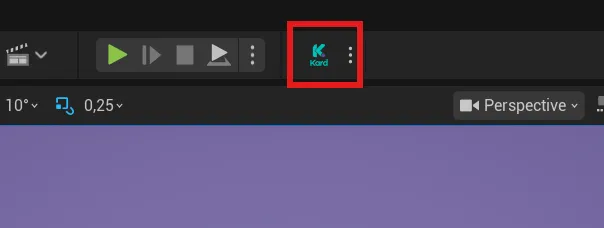
If not, enable it following these steps:
- In the editor, open Edit → Plugins.
- Search for Kard (it’s in the Editor category).
- Make sure it’s enabled. If you just enabled it, restart the editor when prompted.
Step 4 — Open Kard and verify
Section titled “Step 4 — Open Kard and verify”Kard adds three ways to open it. Any one confirms a healthy install:
- Toolbar — click the Kard button in the level editor toolbar.
- Window menu — choose Window → Kard.
- Kard menu — use the top-level Kard menu in the menu bar (Open Tasks / Pages / Notes / Dashboard).
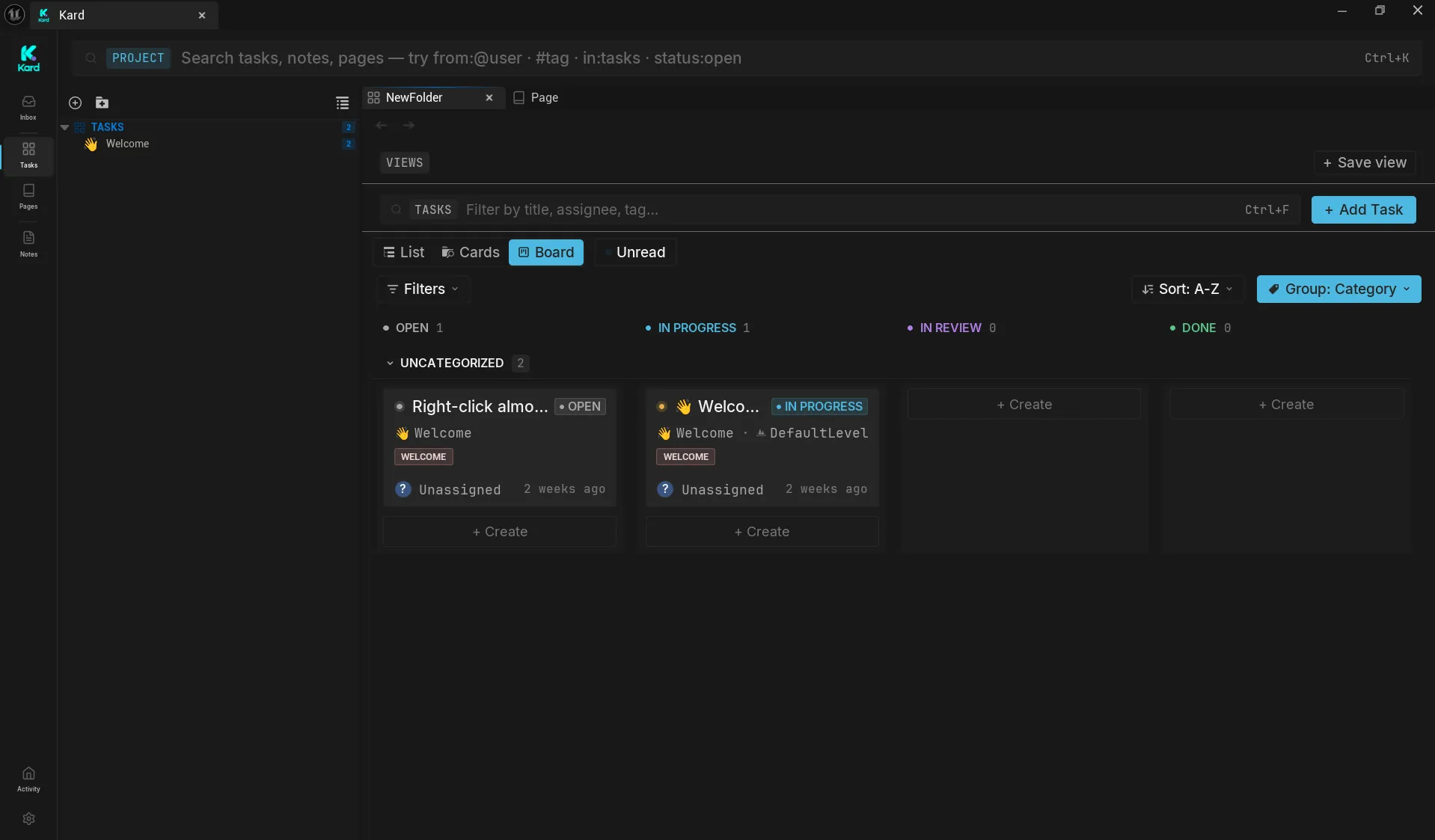
Kard opens as a single dockable tab titled Kard.
Accounts
Section titled “Accounts”The first screen you will see is the login page.
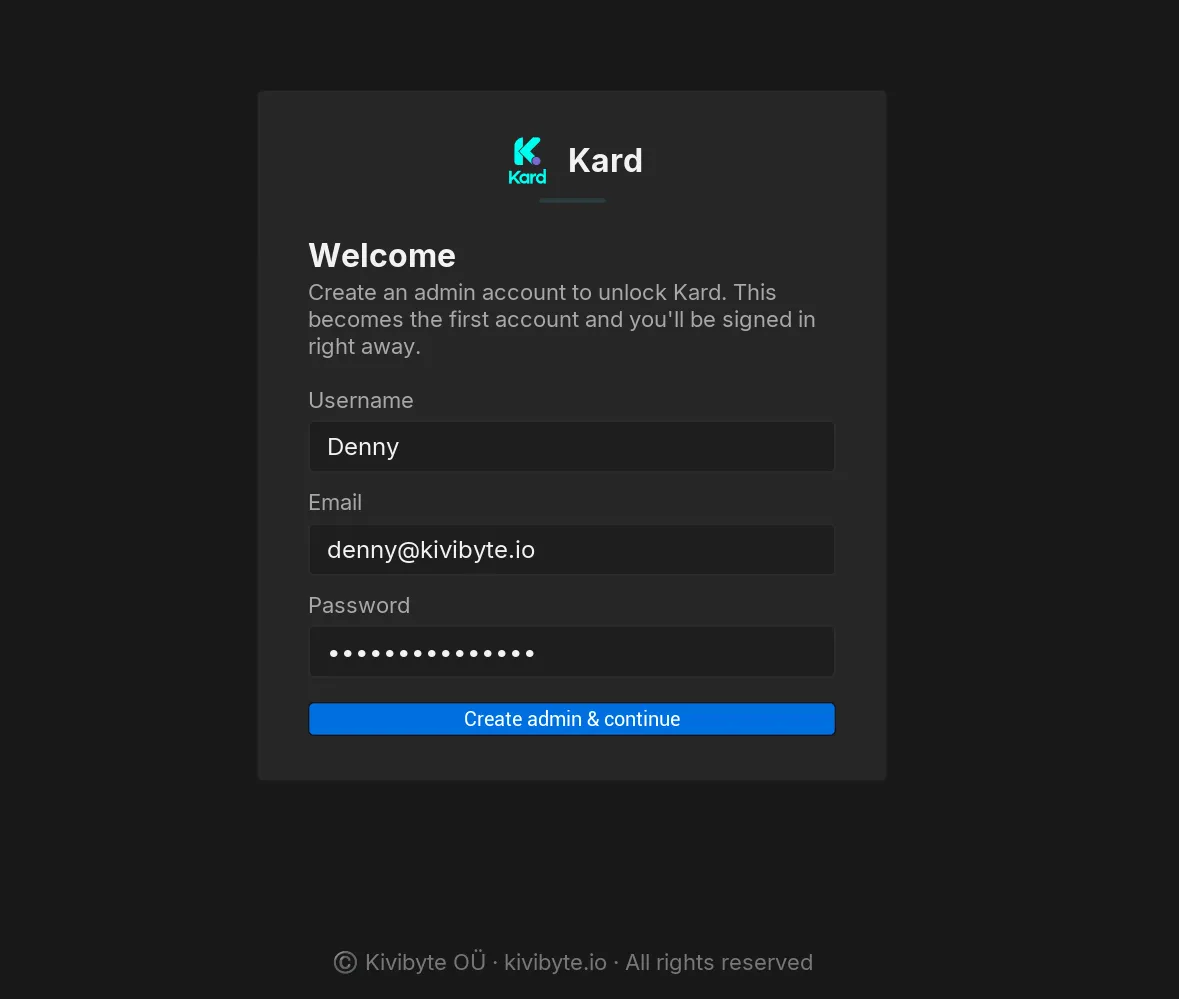
Once the account was created you should see the Kard interface and the welcome content to make you familiar with Kard.
Check your version
Section titled “Check your version”To see which version you installed, open the Kard toolbar dropdown and choose Help → About Kard. It shows the installed version and the Kivibyte copyright.
Where your data lives
Section titled “Where your data lives”Kard stores every card as a standard asset (.uasset) inside your project’s Content folder. That means:
- Kards are version-controlled like any other asset — commit them with your project.
- Nothing leaves your machine; there’s no external service to configure.
A hosted cloud sync backend is in development for a future release.
Related Reads
Section titled “Related Reads”- Your First Kard — create your first kard in a couple of minutes.
- Core concepts — the handful of ideas the rest of the docs build on.
- FAQ & troubleshooting — storage, source control, and data safety.