
Capture work automatically
Turn signals your project already produces — code comments and editor warnings — into Kard Kards, instead of retyping them by hand. This page covers two capture tools: the TODO scanner and Message Log capture.
Where the capture tools live
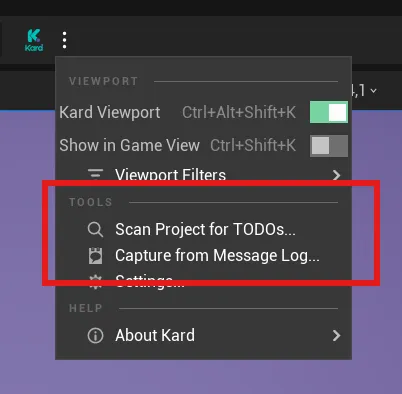
Section titled “Where the capture tools live”Both tools open from the Kard toolbar’s settings menu:
- Open Kard, then click the settings combo on the Kard toolbar.
- Under Tools, choose either:
- Scan Project for TODOs…
- Capture from Message Log…
Each opens its own standalone window. The window is a throwaway tool, not a Kard tab — open it when you need it, close it when you’re done. Re-opening the same tool brings the existing window forward, so your triage isn’t lost.
Scan code and Blueprint comments for TODOs
Section titled “Scan code and Blueprint comments for TODOs”The TODO scanner finds TODO, FIXME, and HACK markers in your project and lets you turn the ones that matter into tasks.
What it scans:
- C++ source comments — single-line
//comments in.h,.cpp, and.hppfiles under your project’sSource/andPlugins/*/Source/folders. - Blueprint comment nodes — the text inside comment boxes in any Blueprint graph.
Run a scan
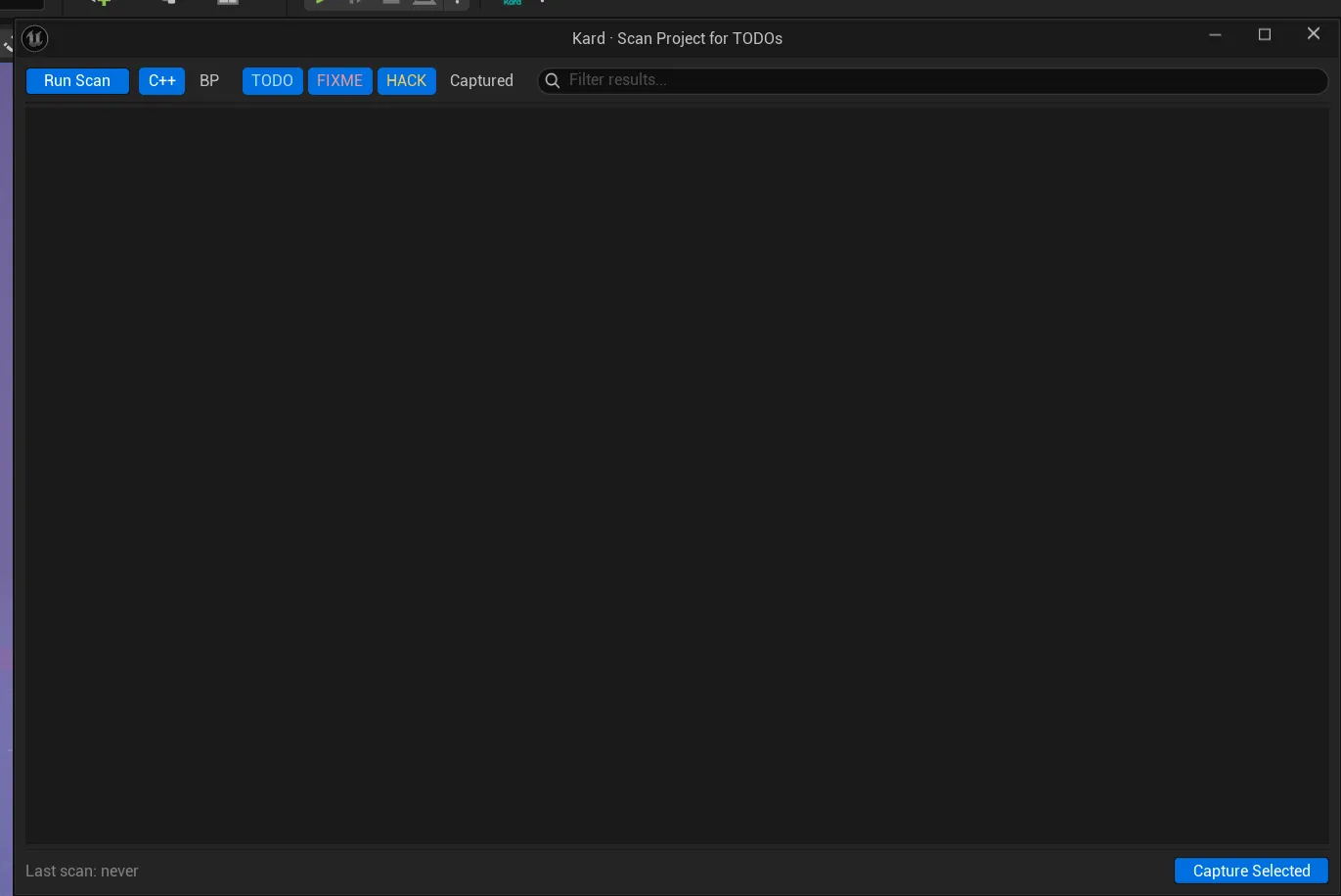
Section titled “Run a scan”- Open Tools → Scan Project for TODOs…
- Click Run Scan.
- Review the results — each match shows its source (C++ or Blueprint), its marker type (TODO / FIXME / HACK), its location, and the comment body.
By default the scanner reads C++ source only. Loading every Blueprint is slow on large projects, so Blueprint scanning is off by default — tick the Blueprint source option before you click Run Scan to include comment nodes.
Use the filter pills (TODO, FIXME, HACK) and the search box to narrow the list to what you care about.
Jump to a match
Section titled “Jump to a match”Click a row’s location to open it in place:
- A C++ match opens the source file at that line in your configured external editor.
- A Blueprint match focuses the comment node in the Blueprint graph.
This is read-only navigation — clicking a location never creates a Kard.
Capture matches as tasks
Section titled “Capture matches as tasks”- Select one or more rows in the list.
- Click Capture Selected.
Each selected match becomes a Task Kard:
- The title is the comment text (or the source location, if the comment has no body after the marker).
- The description is the full matched line or comment.
- A tag is added for the marker type:
todo,fixme, orhack. - The Kard carries a link back to the source, so you can jump from the Kard to the code or Blueprint node later.
After capture, the scanner refreshes. Captured rows show their new marker and drop out of the default view.
Understand the round-trip marker
Section titled “Understand the round-trip marker”When you capture a comment, Kard writes a small marker back into the source comment so the same comment isn’t captured twice on the next scan:
// TODO: refactor this → // TODO(KARD-A1B2C3D4): refactor thisThe KARD-A1B2C3D4 part is a short ID that ties the comment to the Kard it became. This is intentional and honest by design — it means:
- Re-scans skip captured comments. A comment that already carries a
(KARD-...)marker won’t be offered again, so you can re-scan freely without duplicate Kards. - Your source files change. Capturing a C++ TODO edits the source file to insert the marker. Capturing a Blueprint TODO edits the comment node and marks the Blueprint dirty — you’ll be prompted to save it like any other change.
- It’s safe to re-run. Writing the marker is idempotent: if a marker is already there, nothing is rewritten.
Capture Message Log rows as tasks
Section titled “Capture Message Log rows as tasks”The Message Log capture tool turns rows from Unreal’s Message Log — the warnings and errors the editor surfaces — into Kard tasks, with the diagnostic text and severity carried over for you.
Capture from a listing
Section titled “Capture from a listing”- Open Tools → Capture from Message Log…
- Pick a listing from the dropdown. The tool reads Unreal’s six standard listings:
- Map Check — actor and level errors
- Blueprint Log — Blueprint compile output
- Load Errors — asset load failures
- Asset Check — asset validation
- PIE — Play-In-Editor warnings
- Lighting Results — static lighting bake
- Select the rows you want.
- Click Capture Selected.
Each selected message becomes a Task Kard:
- The description is the message’s text.
- The severity becomes a tag:
error,warning, orinfo. - Every captured message also gets a
messagelogtag, so you can filter for “everything I captured from the editor” in one step. - The asset or actor a message points to is linked on the Kard, so you can jump back to the offending object.
Captured Kards are not opened automatically — bulk capture would pop a tab per Kard. Find them afterward with the messagelog tag.
Related Reads
Section titled “Related Reads”- Create & edit Kards — fill in, edit, and refine the Kards you just captured.
- Folders, boards & columns — sort captured tasks into folders and workflow columns.
- Relate & link Kards — connect captured tasks to related work.