

Relate & link Kards
Connect one Kard to another. Kard gives you two ways to link Kards: typed relations (a structured edge like Blocks or Depends on, edited in a panel) and wikilinks (a [[…]] reference you type into a Kard’s description). Both let you jump straight to the linked Kard, and both surface backlinks — the Kards that point back at the one you’re looking at.
This page covers Kard-to-Kard links only. To link a Kard to an actor, Blueprint, or other engine object, see Contexts & references; to pin a Kard in your level, see Anchor Kards in your level. For the full markdown and wikilink syntax, see the Markdown reference.
New to the vocabulary (Kard, folder, status)? Start with Core concepts.
Add a typed relation
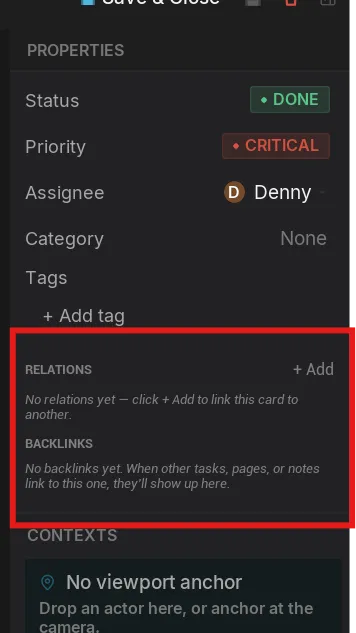
Section titled “Add a typed relation”A typed relation is a labelled link from one Kard to another — for example, “this Kard Blocks that one.” You add it from the Relations panel on the right rail of any open Kard.
The four kinds are:
| Kind | Use it when |
|---|---|
| Blocks | This Kard stops another from progressing. |
| Depends on | This Kard needs another finished first. |
| Duplicates | This Kard is a duplicate of another. |
| Relates to | A loose connection — the catch-all. |
To add one:
- Open the Kard you want to link from.
- In the right-rail Relations panel, click + Add.
- In the picker window, choose a kind from the dropdown (it defaults to Relates to).
- Search by title and select the Kard you want to link to.
- Click Add Relation.
The new relation appears as a chip under its kind in the Relations panel. Click a chip’s label to jump to the linked Kard; click its × to remove the relation.
Understand backlinks
Section titled “Understand backlinks”Relations are stored on the source Kard only. When you add a “Blocks” relation from Kard A to Kard B, that edge lives on A. Kard B doesn’t store anything — instead, Kard queries which Kards point at B and shows them as backlinks.
This has one consequence worth knowing:
There’s nothing to maintain on the target side: you never edit a backlink directly. To change or remove an incoming link, open the source Kard and edit the relation there.
See a Kard’s backlinks
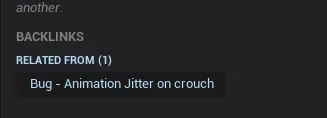
Section titled “See a Kard’s backlinks”Open any Kard and look at the Backlinks section in the right-rail Relations panel, below the outgoing relations. It groups the Kards pointing at this one by relation kind:
| Section | Shows Kards that |
|---|---|
| BLOCKED BY | declare a Blocks relation to this Kard |
| DEPENDENTS | depend on this Kard |
| DUPLICATED BY | mark this Kard as a duplicate |
| RELATED FROM | relate to this Kard |
| MENTIONED IN | reference this Kard in their description with a wikilink |
Backlink chips have no × — to remove one, edit the source Kard. Clicking a chip jumps to that Kard.
Link Kards in text with wikilinks
Section titled “Link Kards in text with wikilinks”Inside a Kard’s description you can link to another Kard by typing a wikilink — Kard’s internal link form. It renders as a clickable chip.
| You type | Result |
|---|---|
[[Target]] | A link to the target Kard. |
[[Target|Display]] | The same link, shown with your own label instead of the Kard title. |
Wikilinks resolve to:
- Another Kard, referenced by its GUID —
[[<Kard GUID>]]. - A specific comment on a Kard —
[[<Kard GUID>#comment-<comment GUID>]]. Clicking it opens the Kard and scrolls to that comment.
Both forms accept the optional |Display segment, and Kard keeps your label even if the target can’t be resolved yet — your text is never silently dropped.
A Kard mentioned by a wikilink picks up a backlink too: it appears under MENTIONED IN on the referenced Kard — after the Kard containing the wikilink is saved (same save-to-see rule as relations above).
Relations vs. wikilinks — which to use
Section titled “Relations vs. wikilinks — which to use”- Use a typed relation when the connection has meaning you want to track — a blocker, a dependency, a duplicate. It’s a deliberate, structured edge that shows up in the panel on both Kards.
- Use a wikilink when you’re writing and want to reference another Kard inline, mid-sentence. It’s casual prose, and it shows up as a Mentioned in backlink rather than a typed edge.
Kard keeps the two separate on purpose: a wikilink mention never becomes a typed relation automatically.
Related Reads
Section titled “Related Reads”- Create & edit Kards — the Kards you’re linking together.
- Contexts & references — link Kards to actors, Blueprints, and other engine objects.
- Anchor Kards in your level — pin a Kard to a 3D spot and see it in the viewport.
- Core concepts — the object model the rest of the docs assume.