

Tasks - Folders, boards & columns
Set up the structure your Kards live in: nest folders, define each folder’s workflow (its columns), and switch between List, Kards, and Board views. This page covers structure only — see Search, filter & saved views for finding work inside that structure, and Create & edit Kards for the Kards themselves. New to the terms folder, status, and column? Start with Core concepts.
How the pieces fit
Section titled “How the pieces fit”A folder is Kard’s board — a container that holds your Kards. A folder’s workflow is its ordered list of statuses, and that order is the left-to-right column order when you view the folder as a Board. So a Kard’s column is just its status.
Create and nest folders
Section titled “Create and nest folders”You manage folders in the sidebar — the folder tree on the left of the Kard window.
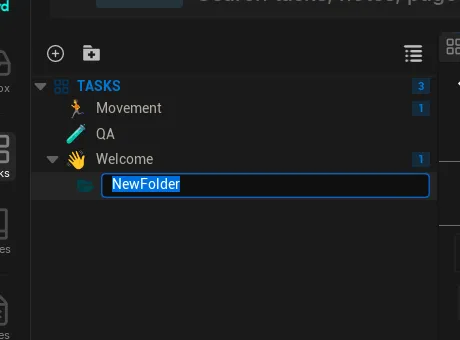
- In the sidebar, create a new folder by right-clicking another folder (like Tasks or Pages), an empty spot in the sidebar, or clicking the +Folder button. Kard adds one named NewFolder.
- Type a name and confirm.
The folder is ready right away. To nest a folder, create it under an existing folder — folders form a tree, and child folders inherit their parent’s workflow until you give them their own (see Define a folder’s workflow).
Rename a folder
Section titled “Rename a folder”- In the sidebar, right-click a folder or press F2 rename the folder and type the new name.
- Enter to Confirm.
Kard moves the folder’s Kards, its settings, and any attachments together — nothing is left behind. Your columns survive the rename, because Kard tracks each folder by a stable internal ID, not its name.
Delete a folder
Section titled “Delete a folder”- In the sidebar, delete the folder.
- Confirm.
This removes the folder and the Kards inside it. Before anything is destroyed, Kard writes a recoverable record of what was deleted, so the deletion stays traceable in the activity history.
Define a folder’s workflow (Board view)
Section titled “Define a folder’s workflow (Board view)”A folder’s workflow is its ordered list of statuses — the columns a Kard can sit in. Every tasks folder has one.
The default columns
Section titled “The default columns”A new folder that hasn’t defined its own workflow uses the default:
- Open
- In Progress
- In Review
- Done
A new Kard always starts in the first status of its folder’s workflow. (Unless you use the inline button to create a task)
Customize the columns
Section titled “Customize the columns”Edit a folder’s columns in Settings → Tasks → Status Sets. OR Right-click a folder and click “Edit Statuses…”
- Open Settings → Tasks → Status Sets (Settings is the Ctrl+, modal).
- Pick the folder you want to edit.
- Add, delete, rename, recolor, or reorder statuses.
Your changes apply to that folder only. If the folder was inheriting its workflow, Kard gives it its own copy on your first edit — so edits never leak into a parent. Reset folder clears the copy and makes the folder inherit again.
Switch layouts: List, Kards, Board
Section titled “Switch layouts: List, Kards, Board”A Tasks folder offers three layouts, toggled with a segmented control at the top of the view:
| Layout | What you see |
|---|---|
| List | Kards as rows. |
| Cards | Kards as card tiles. |
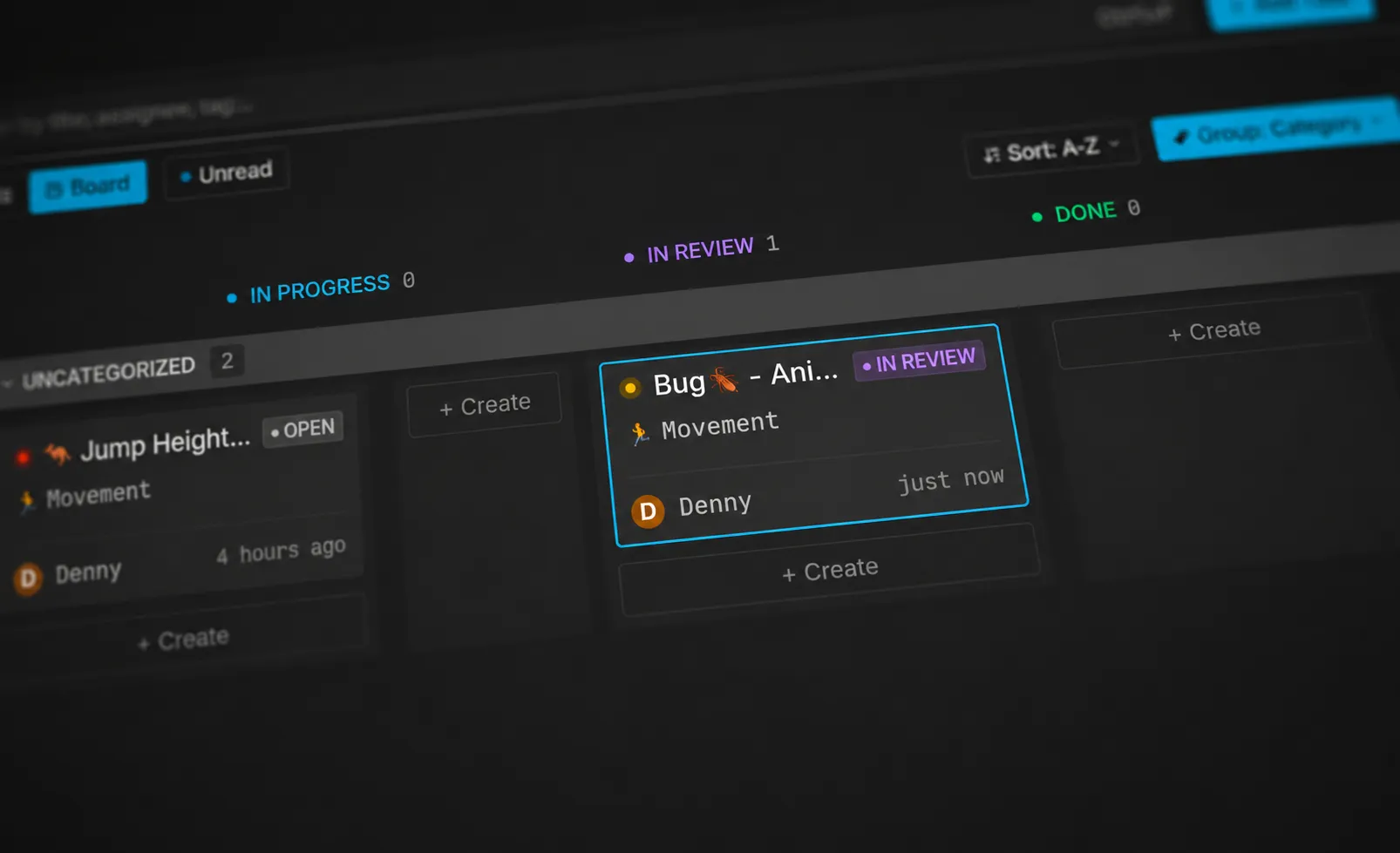
| Board | A kanban board — your statuses as columns/swim lanes, each Kard under its status. Empty columns still appear, in workflow order, so the board’s shape stays clear. |
Move a Kard between columns
Section titled “Move a Kard between columns”How you move a Kard depends on the layout you’re in.
- In Board layout, drag the Kard from one column to another. Kard updates the Kard’s status to match its new column.
- In any layout, change the Kard’s status directly — from the Kard’s status dropdown in the detail view, or by right-clicking it and choosing Set Status.
A Kard’s status and its board column are the same thing, so either route has the same result.
Where folders and columns are stored
Section titled “Where folders and columns are stored”A folder’s configuration — its columns, description, and icon — is saved as a normal Unreal asset (.uasset) inside the folder. There’s nothing extra to set up.
- Version-controlled like any content. Because the config is a plain asset, it commits with your project. Your columns travel with the folder through source control, so the whole team shares the same workflow.
- Nothing leaves your machine. Everything lives in your project’s content; there’s no external service. (A hosted cloud sync backend is in development for a future release.)
Related Reads
Section titled “Related Reads”- Create & edit Kards — add Kards to a folder and edit their fields.
- Search, filter & saved views — find work across folders and save filter presets.
- Core concepts — the object model behind folders, statuses, and views.